Rohit Mehta ← All work

Meal Plan

Let a site configure meal swipes, meal equivalency, and meal exchange in one step of site setup, for whichever provider it uses.

Case studyCompass Digital

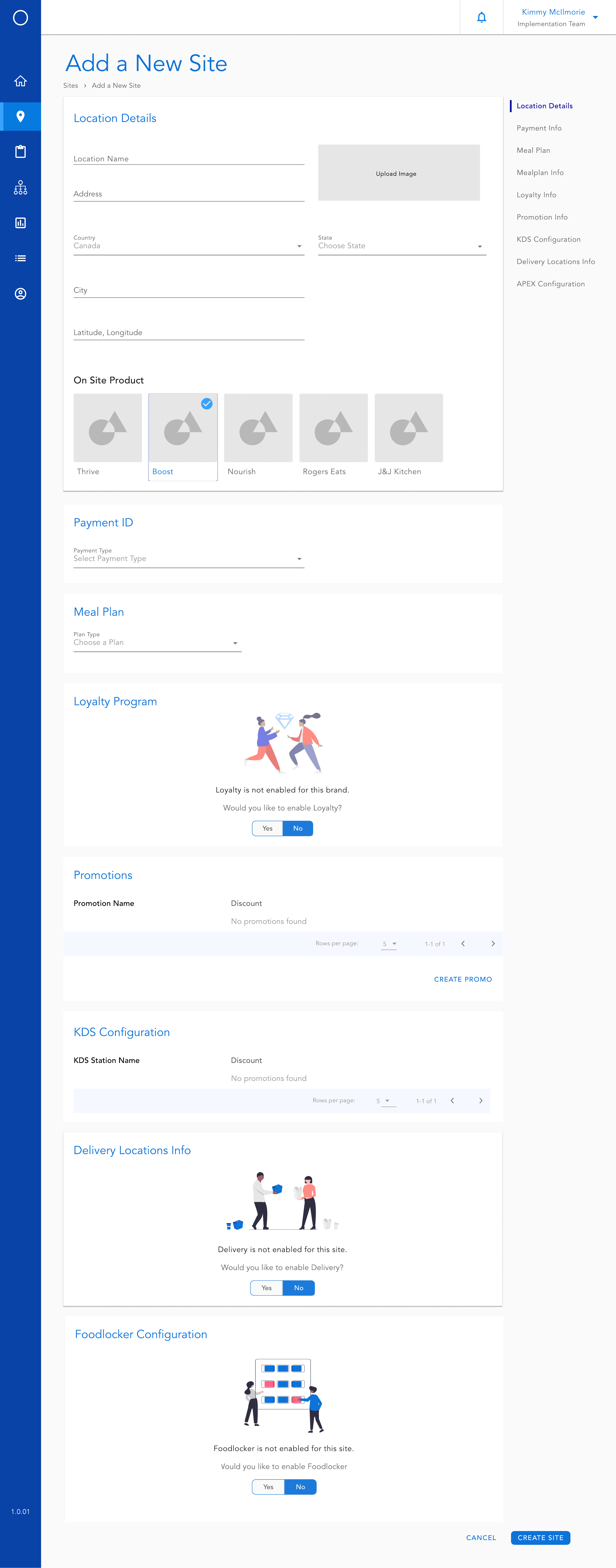
Add a New Site screen with Location Details and On Site Product selection at the top, and a right-hand step list including Payment Info, Meal Plan, Loyalty Info, Promotion Info, KDS Configuration, and Delivery Locations Info
RoleSenior Product Designer
SkillsEnterprise UX, Information Architecture, Wireframing, Design Systems

The problem

Meal Plan was one step in a long site setup form, and it looked the same no matter which backend was actually running it.

Adding a site to the platform means working through Location Details, Payment Info, Meal Plan, Loyalty, Promotions, KDS Configuration, Delivery, and Foodlocker, one after another. The Meal Plan step configures tenders like declining balance, meal swipes, meal equivalency, and meal exchange, running through one of five backend providers: Atrium, CBoard, Transact, TouchNet, or ITC. Each provider needs different fields; Transact alone asks for a host, port, AES key, vendor ID, and a list of terminal IDs. Meal equivalency had been locked to whichever provider happened to support it, and its redemption windows were typed in on a 24-hour clock, where a single wrong digit produced a silent error.
The solution

One Meal Plan step, scoped to the provider the site already picked, with equivalency and exchange as options on a tender instead of separate setups.

Complexity

Four things shaped the design.

  1. Meal Plan isn't a standalone tool, it's one step inside Add a New Site, alongside Payment Info, Loyalty, and Delivery. It had to follow that same step pattern instead of feeling like a different product.
  2. Five providers, five field sets. Transact needs a host, port, AES key, vendor ID, and terminal IDs; the others ask for none of that. The provider already chosen upstream decides what the Meal Plan step shows.
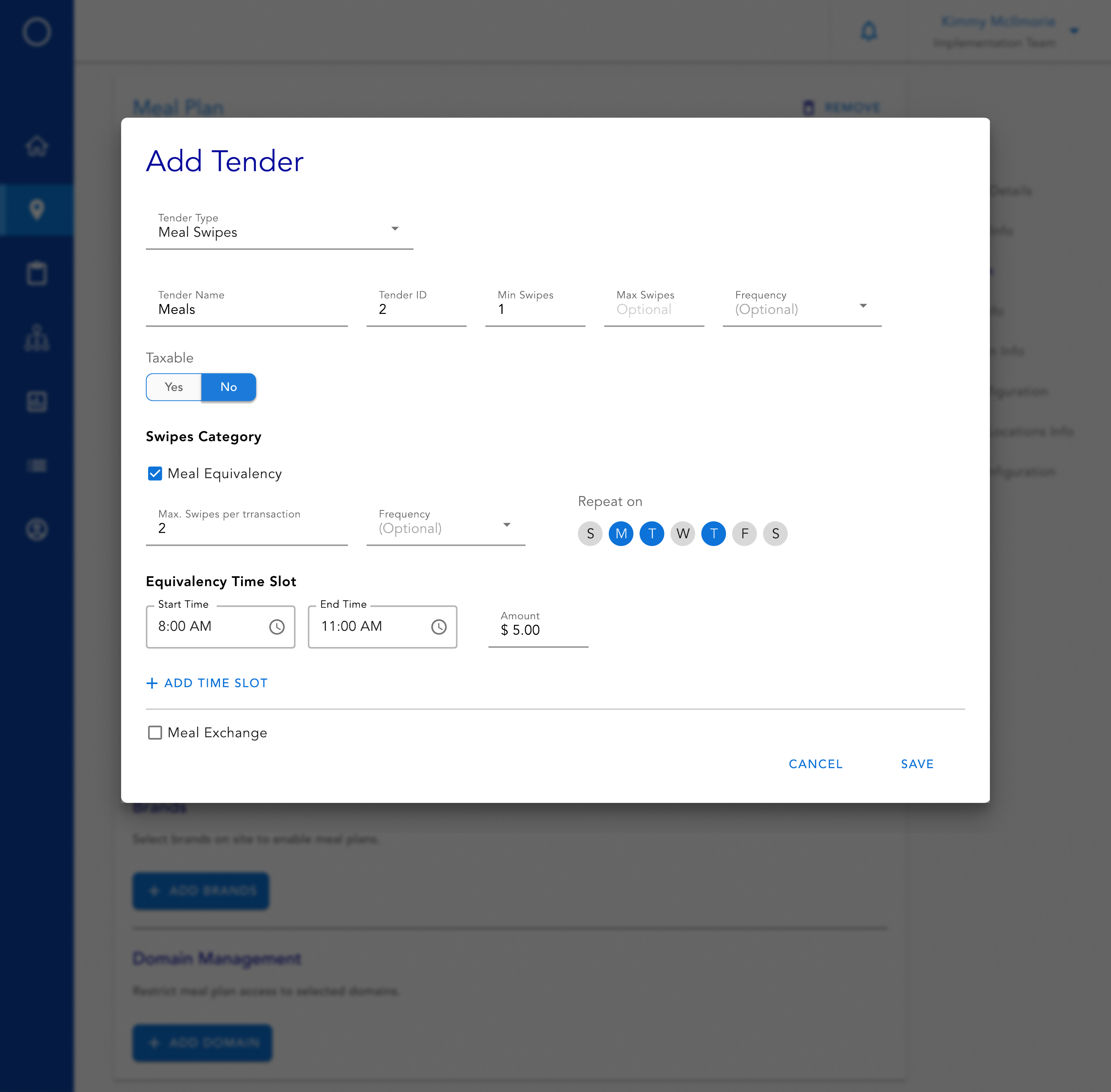
  3. Meal equivalency and meal exchange aren't separate tenders, they're two ways to redeem a Meal Swipes tender, and a site picks one. Equivalency needs its own redemption windows, in plain start and end times, on chosen days of the week, and can have more than one window a day.
  4. The Meal Plan step only creates the tender. Which menu items actually redeem against it is decided elsewhere, in Menu Manager, where a brand checks off eligible items or builds a named combo. The two tools had to agree on the same rule without duplicating the setup.

Final design

A provider's own fields, a list of tenders, and a place to hand the plan to brands, all inside one step of site setup.

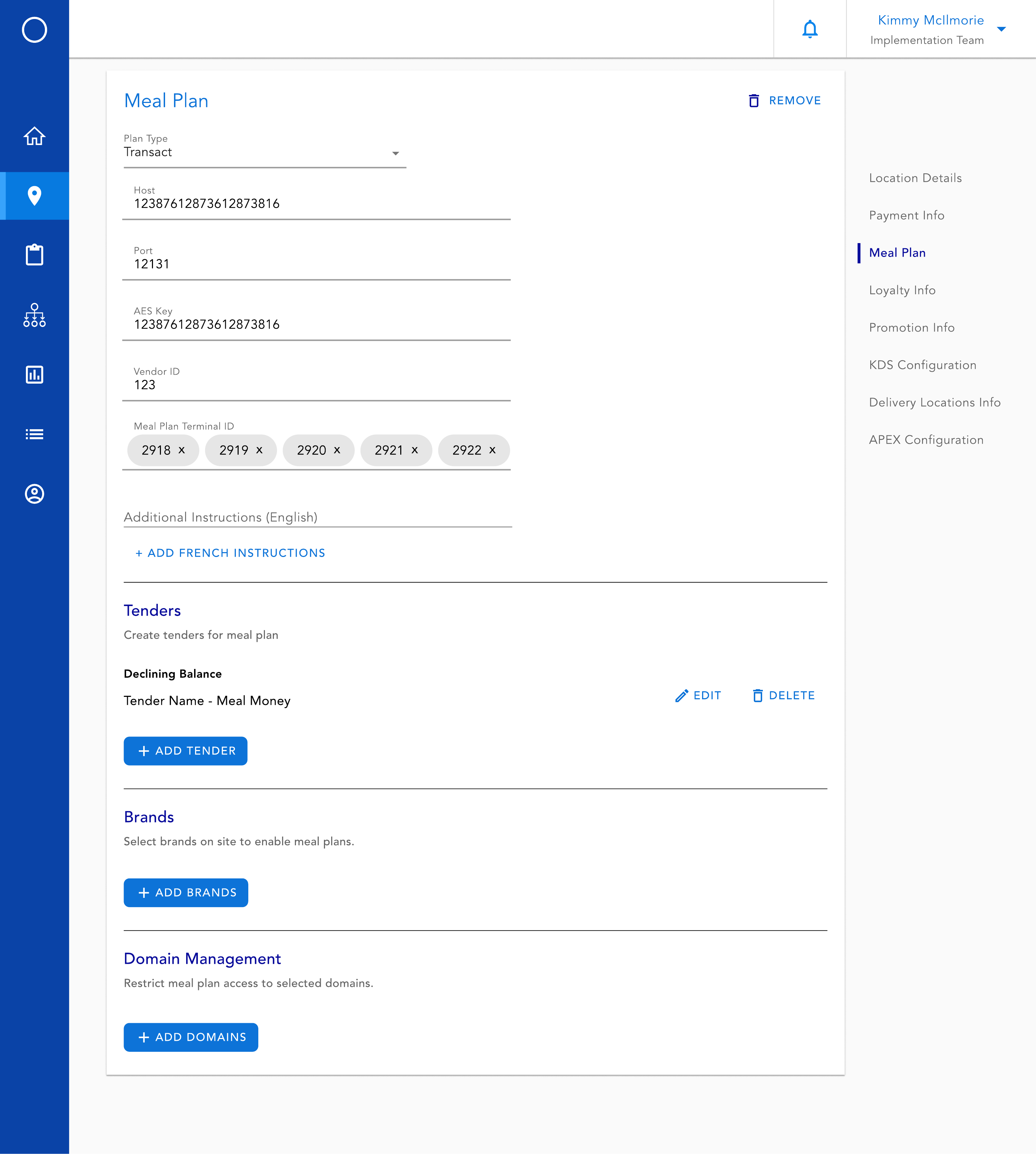
Meal Plan step with Transact selected, showing Host, Port, AES Key, Vendor ID, and Meal Plan Terminal ID fields filled in, one saved Declining Balance tender named Meal Money, and Tenders, Brands, and Domain Management sections below
01Once a provider is picked earlier in site setup, the Meal Plan step only asks for that provider's fields, here Transact's host, port, and AES key, followed by tenders, brands, and domain access.
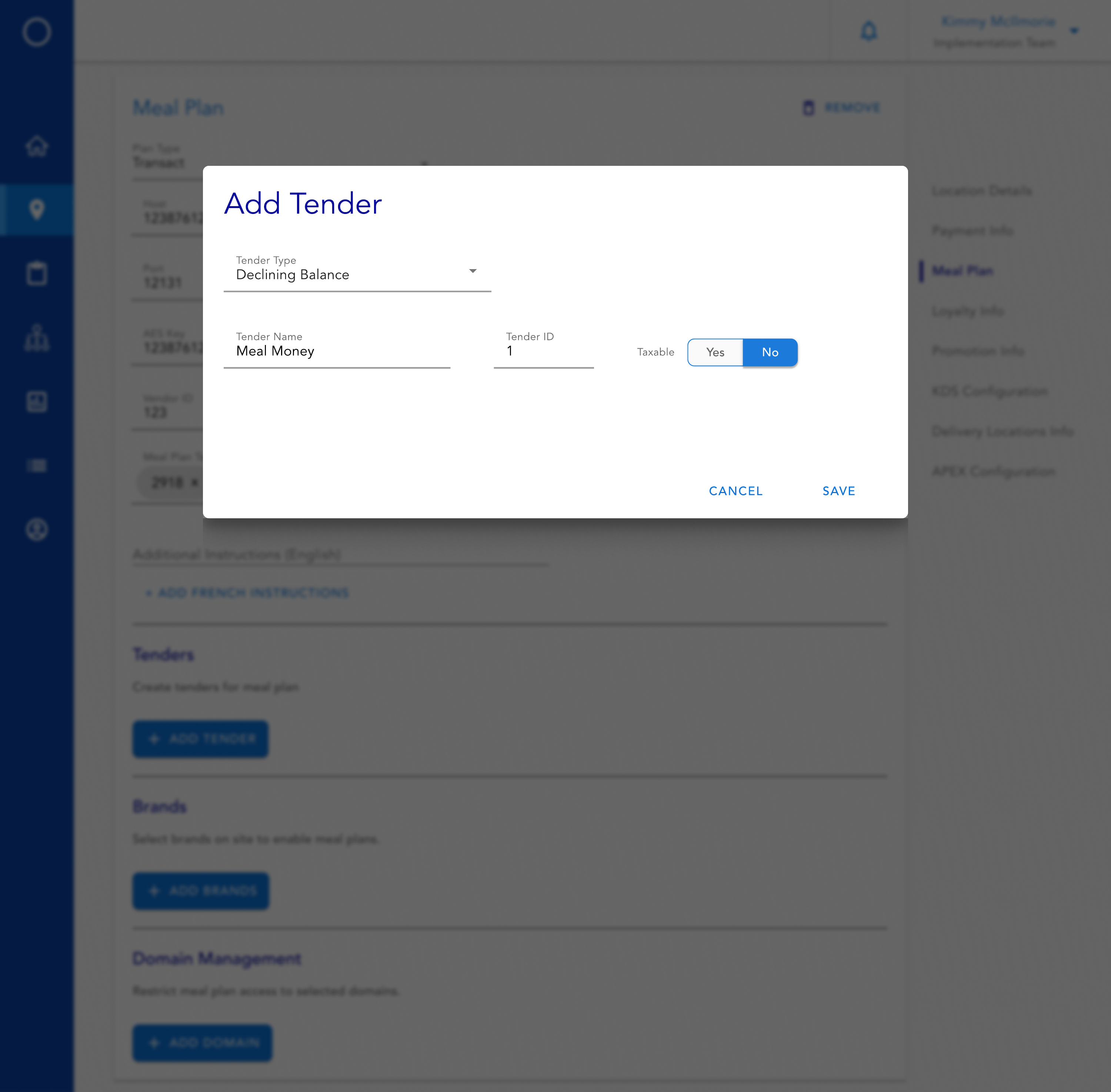
Add Tender modal with Tender Type set to Declining Balance, Tender Name Meal Money, Tender ID 1, and Taxable set to No
02Add Tender opens one modal for every kind of tender. Declining Balance only needs a name, an ID, and whether it's taxed.
Add Tender modal with Tender Type set to Meal Swipes, Meal Equivalency checked under Swipes Category, an 8:00 AM to 11:00 AM equivalency time slot with a five dollar amount, an Add Time Slot link, and a Repeat on day picker with Monday, Tuesday, and Thursday selected
03A Meal Swipes tender can carry meal equivalency or meal exchange. Equivalency gets its own redemption windows, in plain AM and PM, with a day-of-week picker and room to add more than one time slot a day.
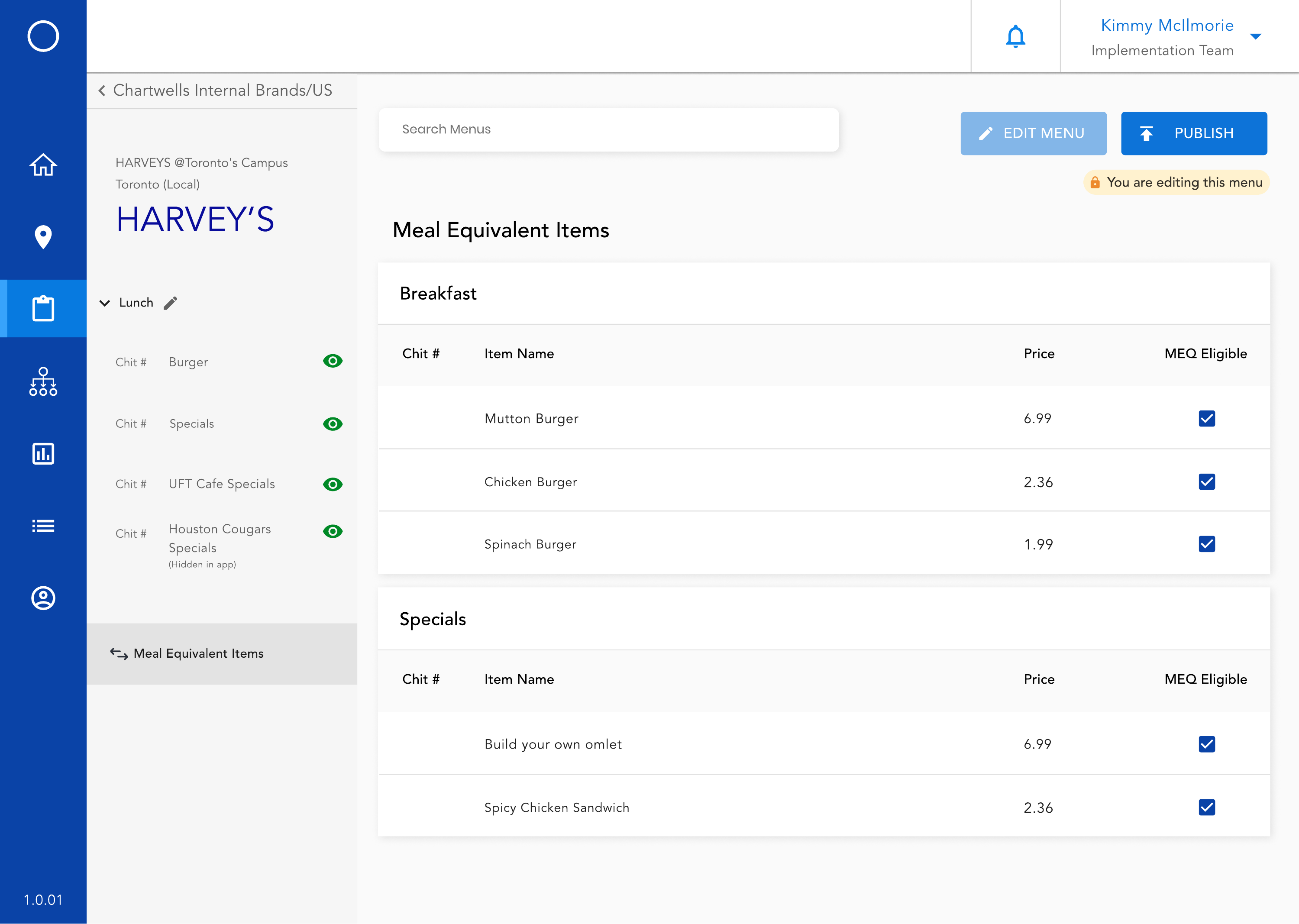
Menu Manager for Harvey's, Meal Equivalent Items screen, listing Breakfast and Specials items each with a price and a checked MEQ Eligible box
04The tender only says equivalency exists. Which items actually redeem against it is set separately, in Menu Manager, where a brand checks Meal Equivalent Items one by one.
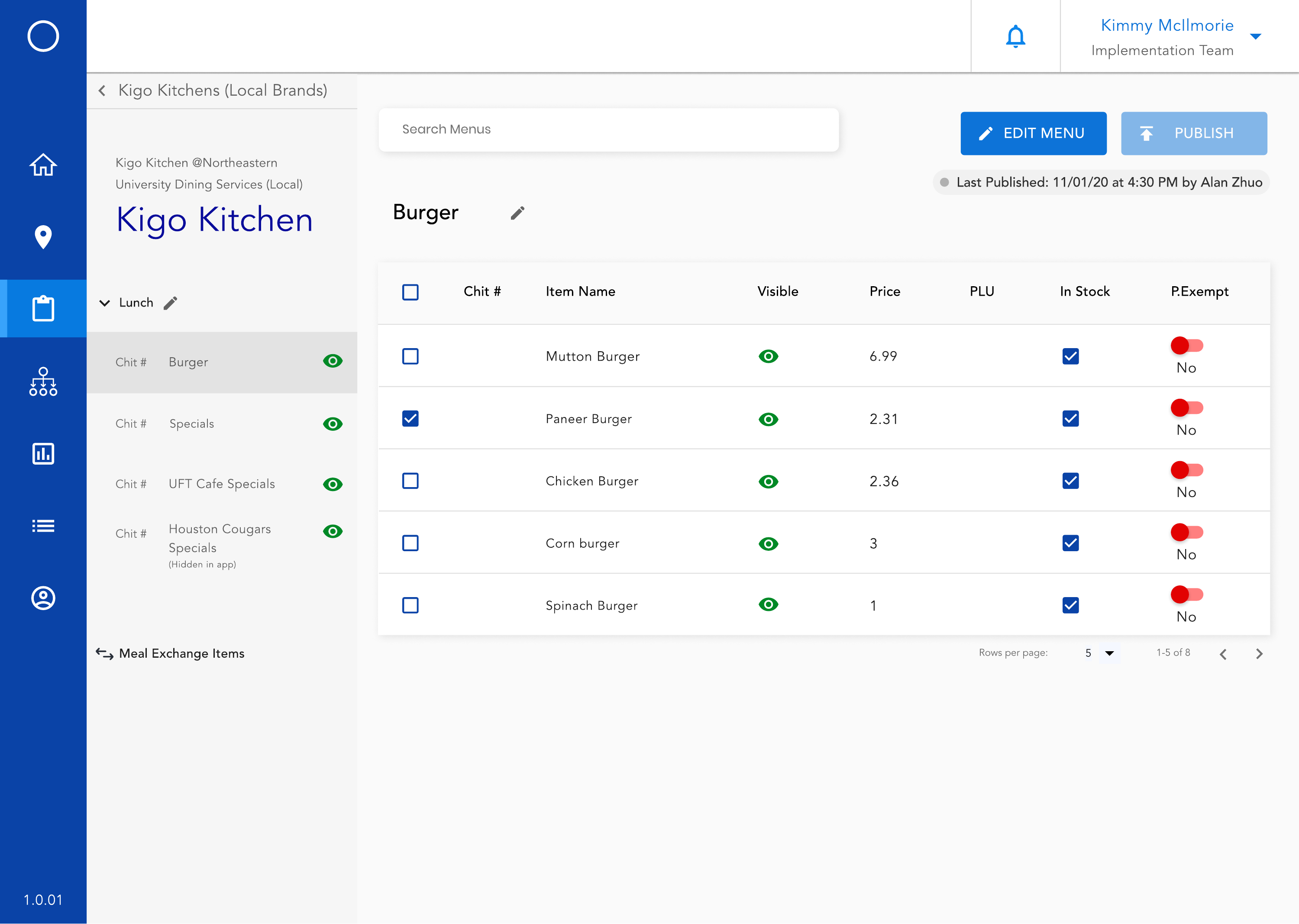
Menu Manager for Kigo Kitchen, Burger category item table, with a Meal Exchange Items link in the left sidebar in place of Harvey's Meal Equivalent Items link
05A site that chose meal exchange instead sees Meal Exchange Items here, not Meal Equivalent Items. The two never appear together for the same brand.
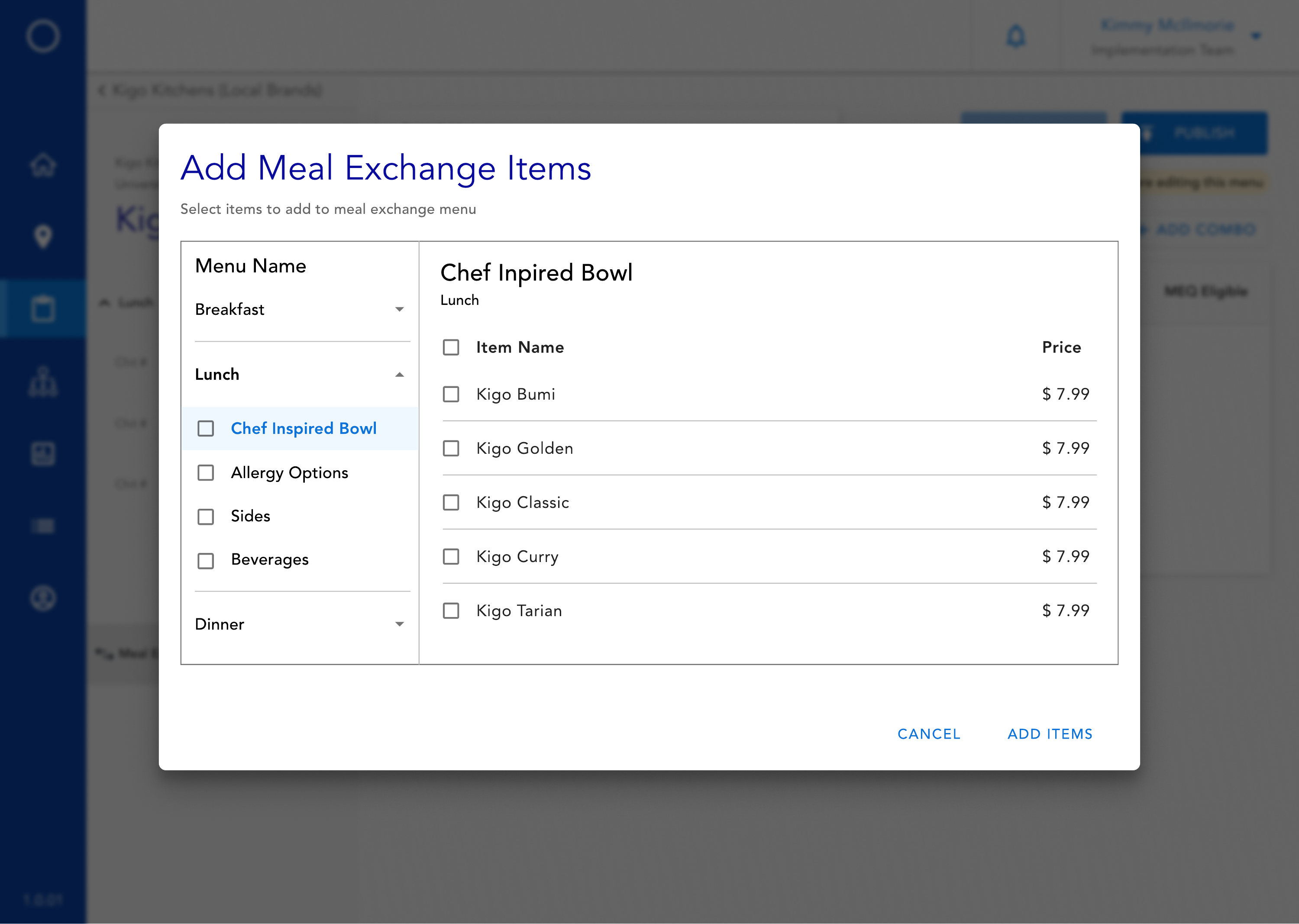
Add Meal Exchange Items modal for Kigo Kitchen with a Menu Name tree on the left and an item checklist with prices on the right for Chef Inspired Bowl under Lunch
06Building the exchange list works like shopping a menu: expand a category, check the items, add them.
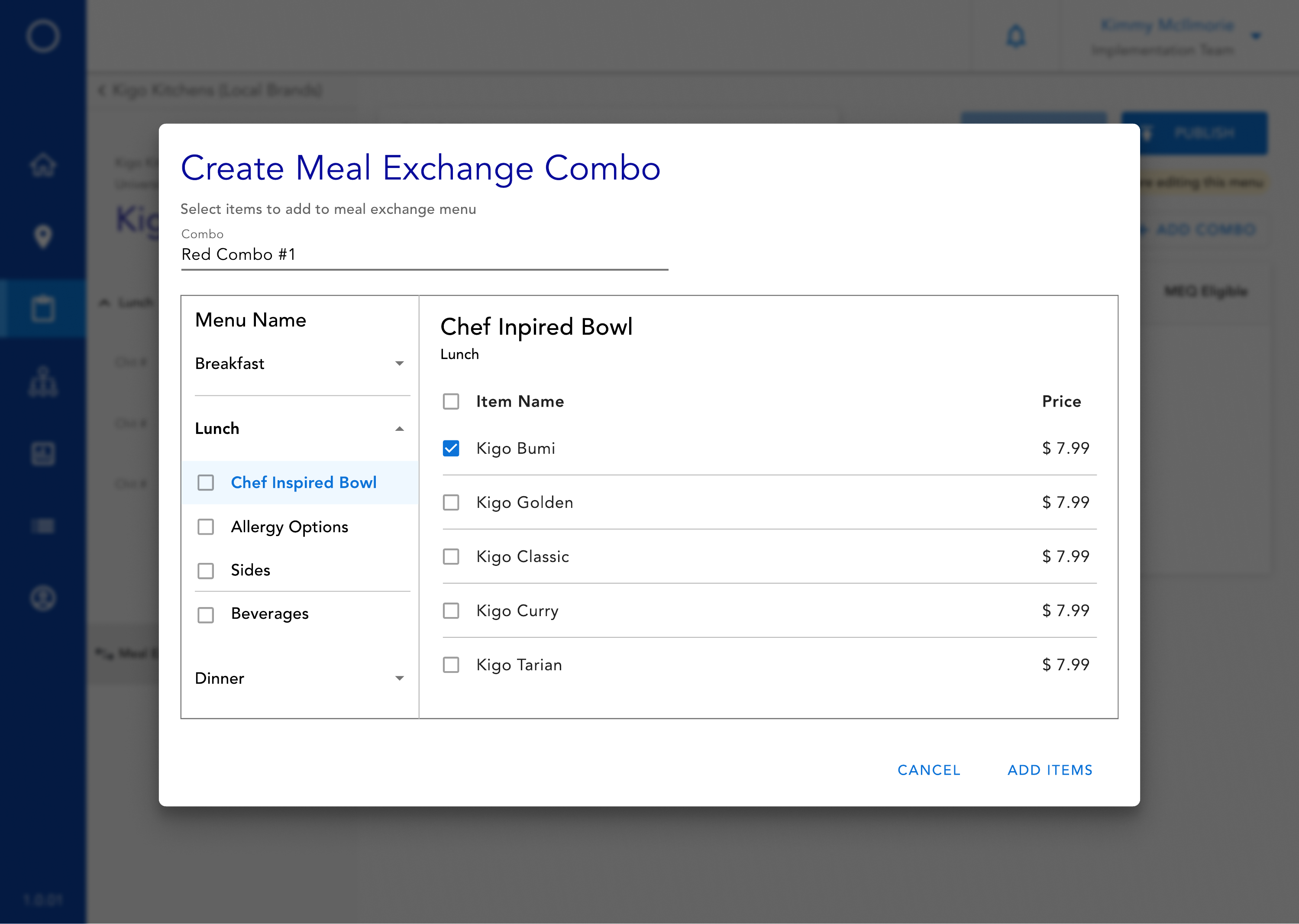
Create Meal Exchange Combo modal named Red Combo #1, with the same menu tree and item checklist used to bundle several items into one combo
07The same picker also builds named combos, like Red Combo #1, for sites that redeem an exchange as a set rather than one item.

Key takeaways

Fit the pattern instead of building a new one.

Meal Plan had to feel like an ordinary step in Add a New Site, not a separate tool bolted on next to Payment Info and Loyalty.

Let one option branch instead of duplicating fields.

Meal equivalency and meal exchange both live under a Meal Swipes tender and only diverge in their own sub-fields, so the modal doesn't need two flows for something a site can only pick one of.

Draw the line between systems where the data actually splits.

The Meal Plan step defines that a tender exists; Menu Manager decides which items redeem against it. Keeping that split legible mattered more than merging everything into one screen.