Rohit Mehta ← All work

One guided process for every plan type

A guided, pre-filled process for creating and managing every plan type in Oracle Supply Chain Planning.

Case studyOraclePrincipal Product Designer

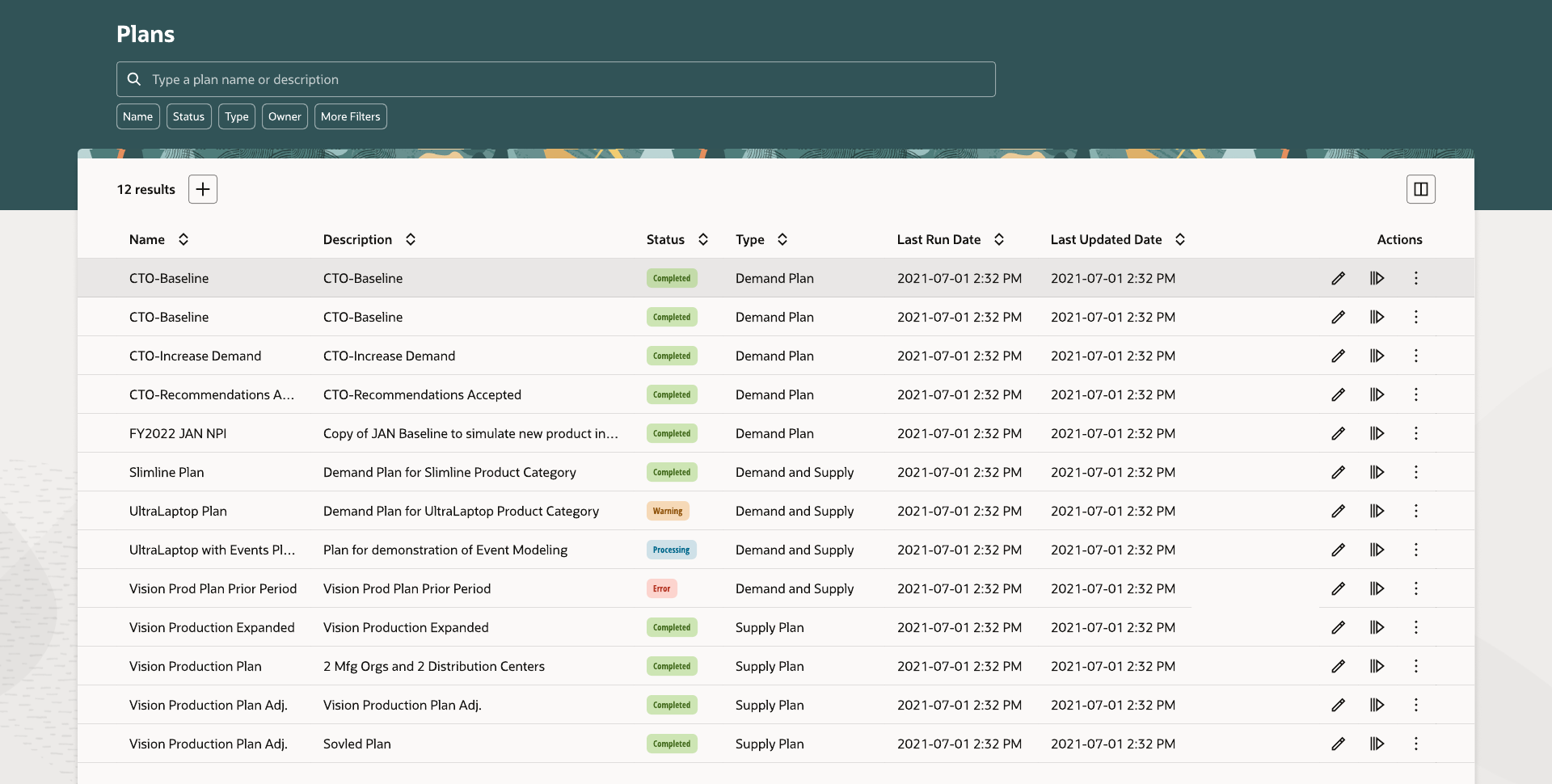
The plans list in the Redwood Supply Chain Planning work area
RolePrincipal Product Designer
SkillsEnterprise UX (SCM), systems design, Redwood design system, prototyping
GoalShow only the steps and fields each plan type needs

The problem

One flat form was used to create every kind of plan.

A planner can create a Demand Plan, a Supply Plan, a Demand and Supply Plan, or a Replenishment Plan. Each needs different inputs and has its own idea of what must be filled in before it can run. The old screen showed the same form for all four, so most fields did not apply to the plan being built, and nothing said which ones did.

The solution

A guided process that shows only the steps a plan type needs, from four to seven, with required fields already filled in.
What shaped the designFour constraints

  1. The plan types do not share a data model. A Supply Plan carries safety stock and sourcing constraints, and a Replenishment Plan carries inventory rebalancing.
  2. Most fields have a sensible default, but some plans need every option, so the full configuration has to stay available.
  3. Each action on an existing plan, such as approve, archive and delete, needs its own privilege, so what a planner can do varies by plan and by user.
  4. Run, approve and archive are scheduled processes, so the interface shows their status instead of assuming they finish right away.

Final design

Choose a type, and the process shows only the steps that type needs.

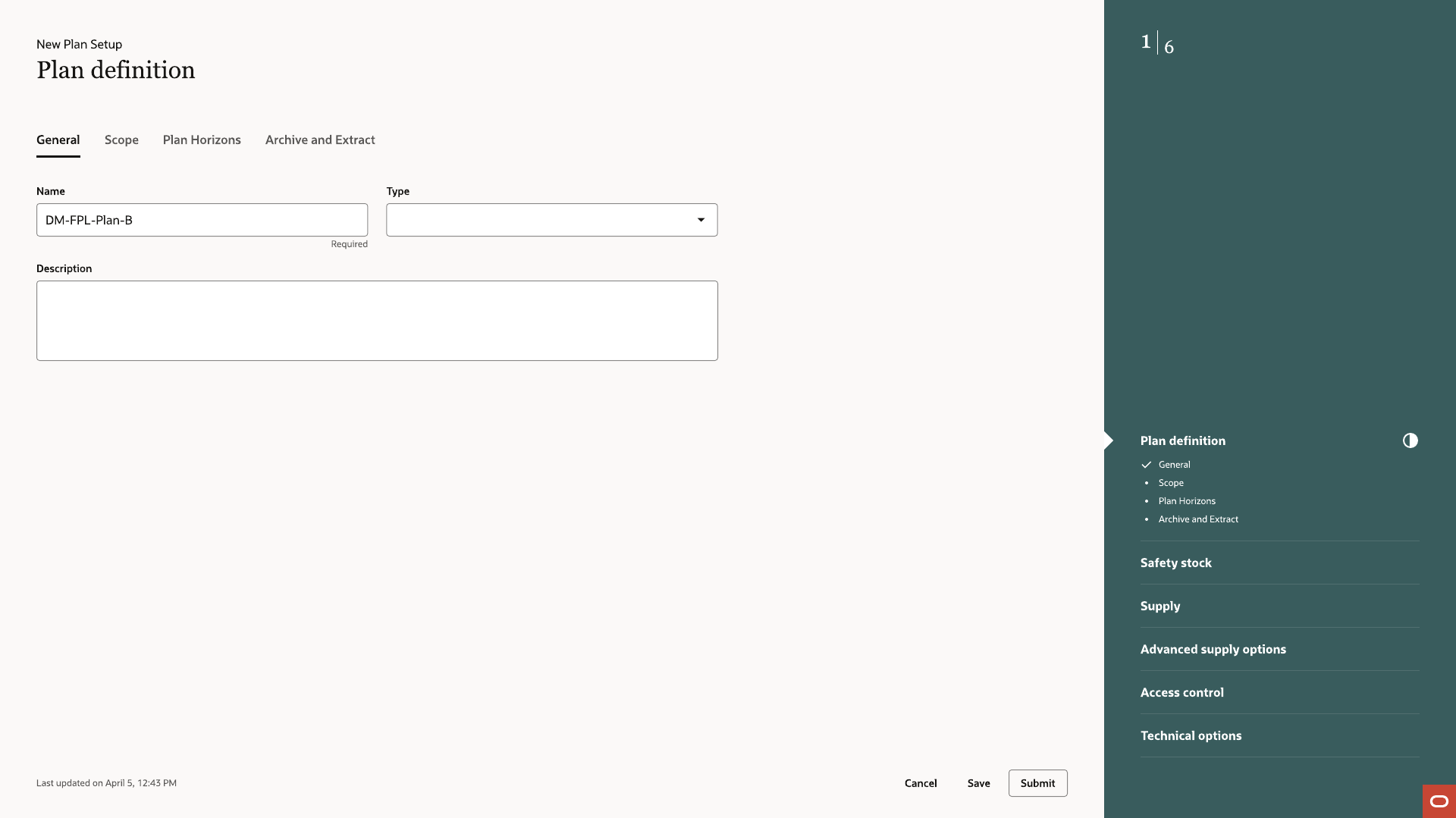
Name, Type and Description fields when starting a new plan, with the full step rail visible
01Name, type and description start every plan. Type decides the steps, defaults and fields for the rest of the flow.
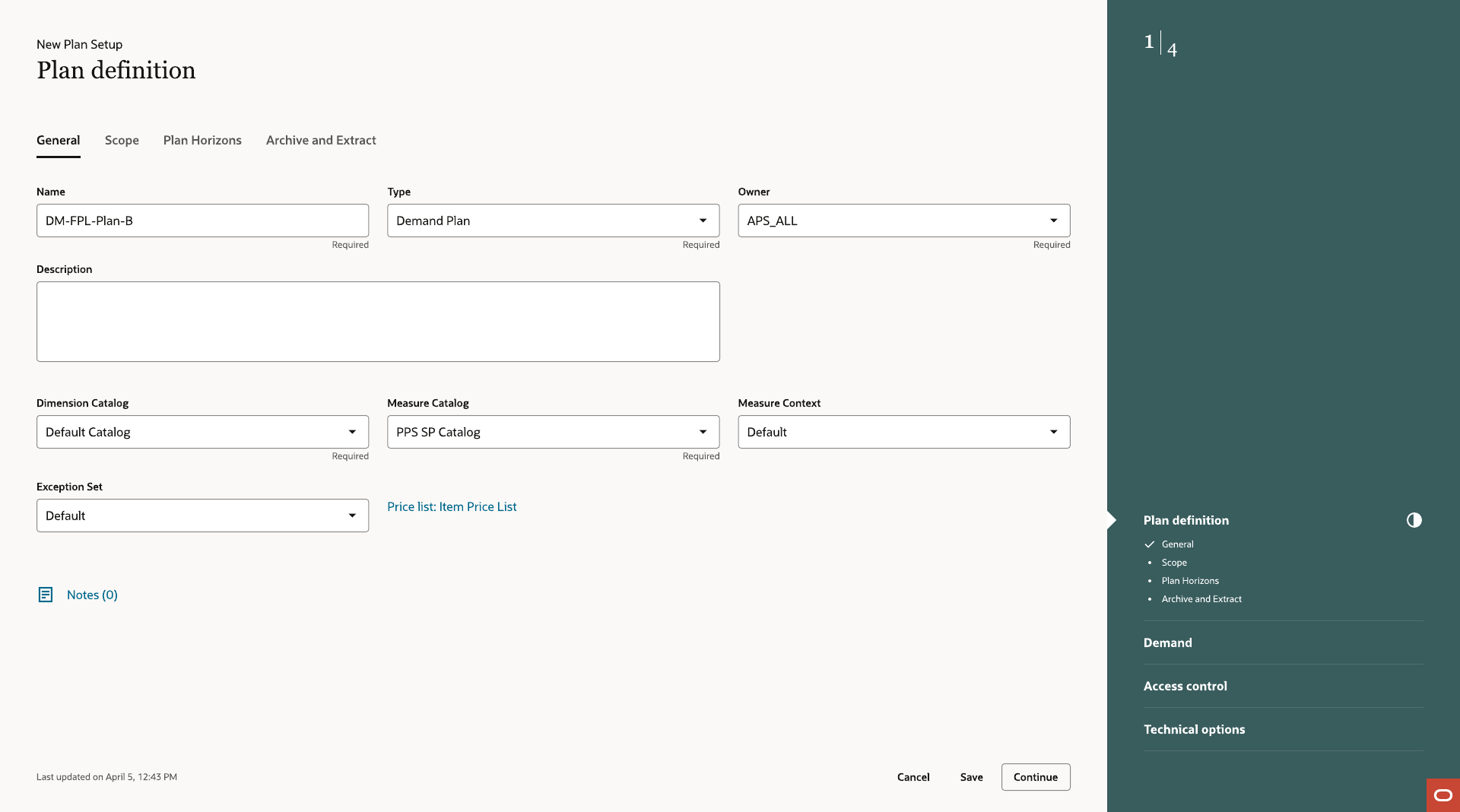
Plan Definition General tab with pre-filled options for a Demand Plan, showing a four-step rail
02Plan Definition, General tab. Catalogs and sets are filled with defaults. This Demand Plan has four steps.
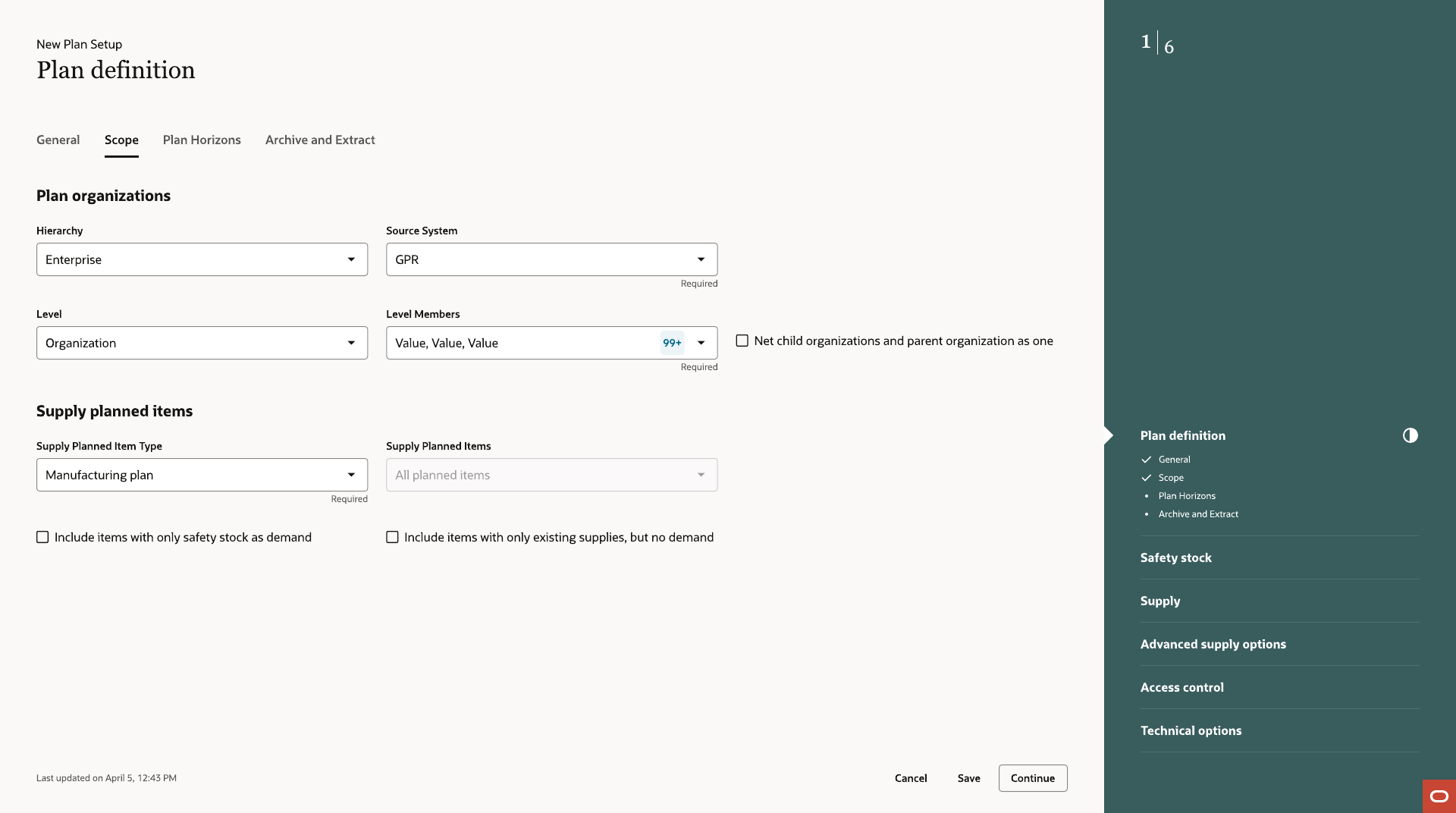
Scope tab for selecting plan organizations and items
03Scope limits the plan to organizations, items and hierarchy levels.
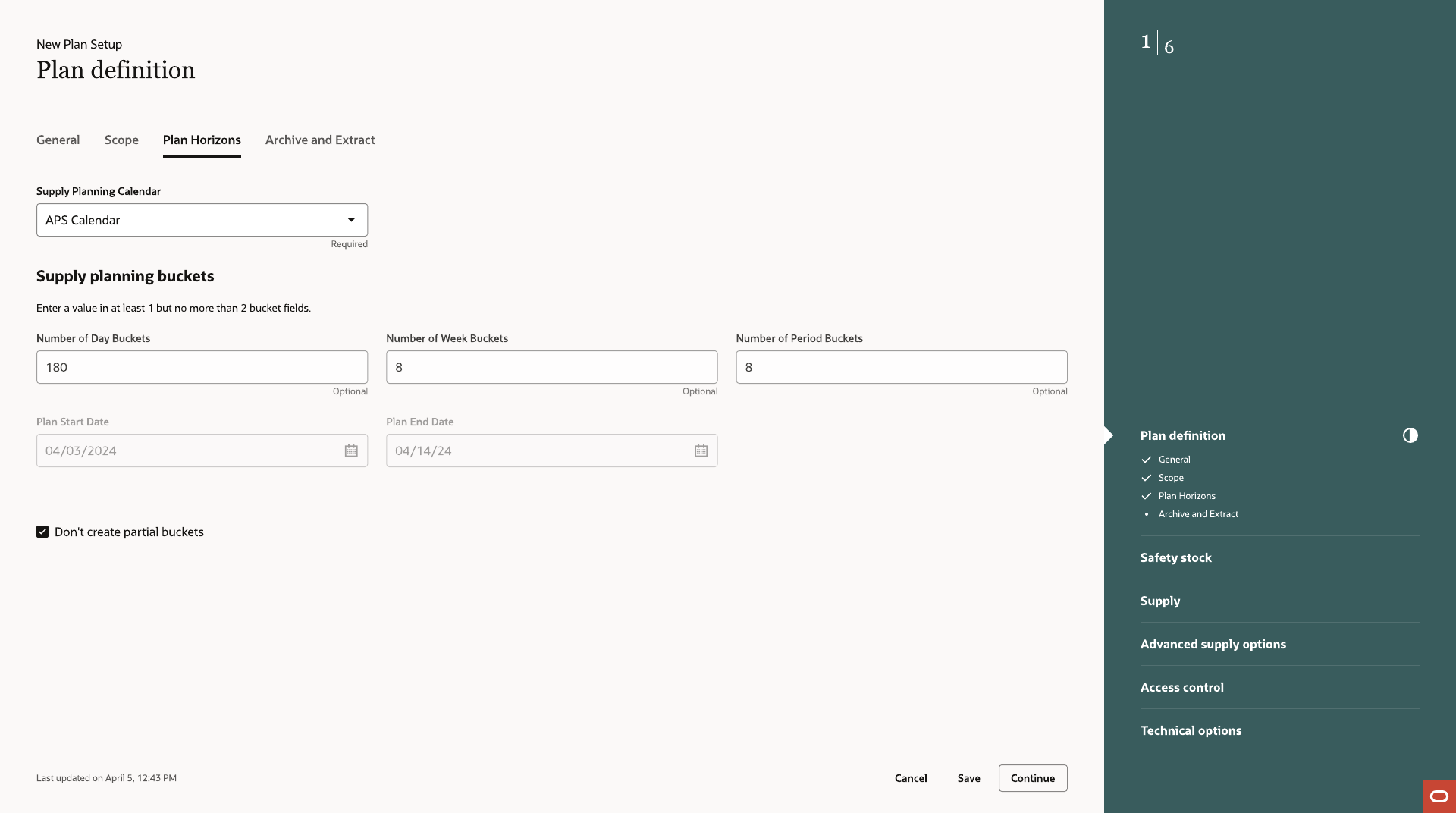
Plan Horizons tab for setting the planning calendar and buckets
04Plan Horizons sets the planning calendar and bucket structure.
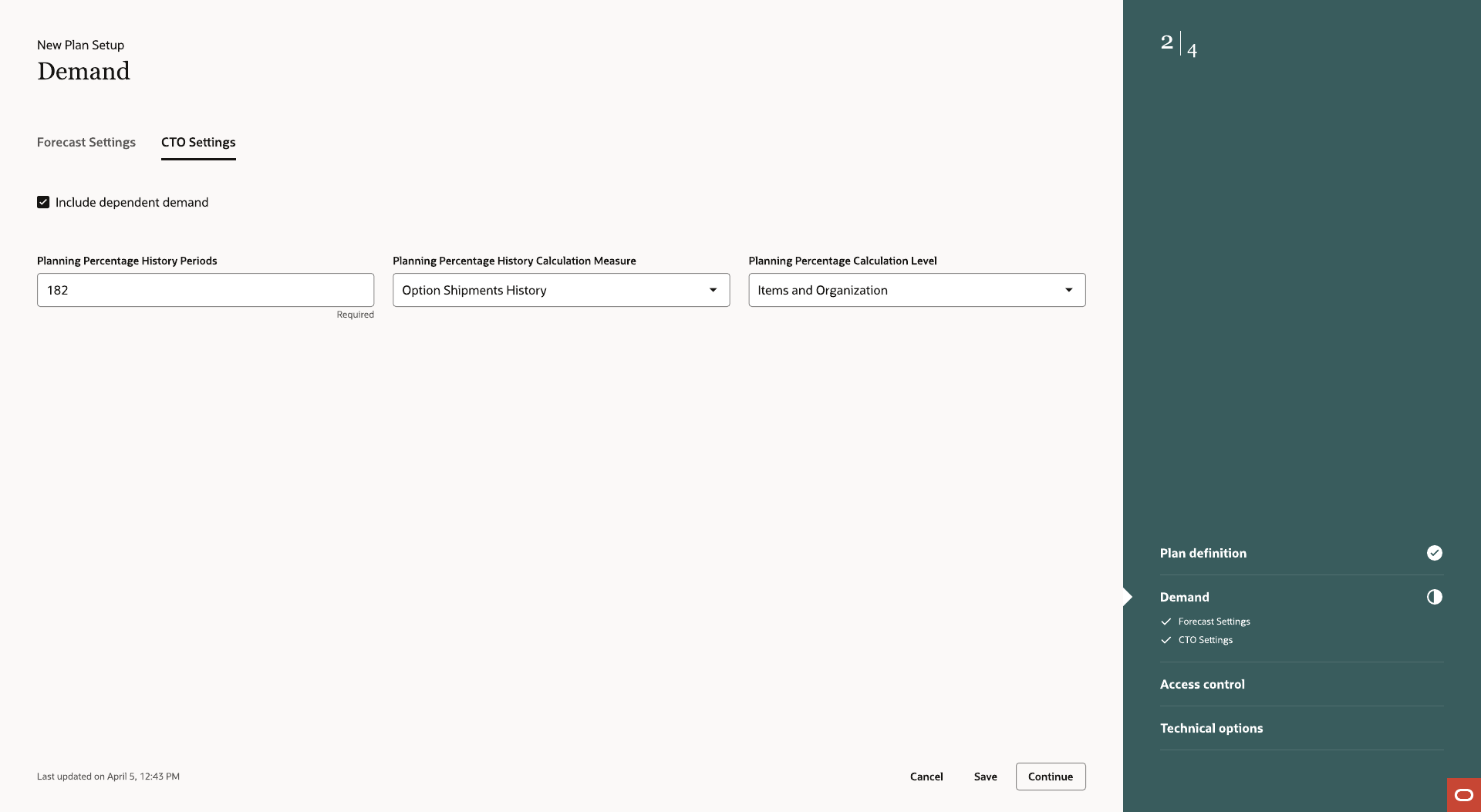
Demand step with CTO Settings tab
05The Demand step appears for plan types that forecast demand. A Supply Plan does not get it.
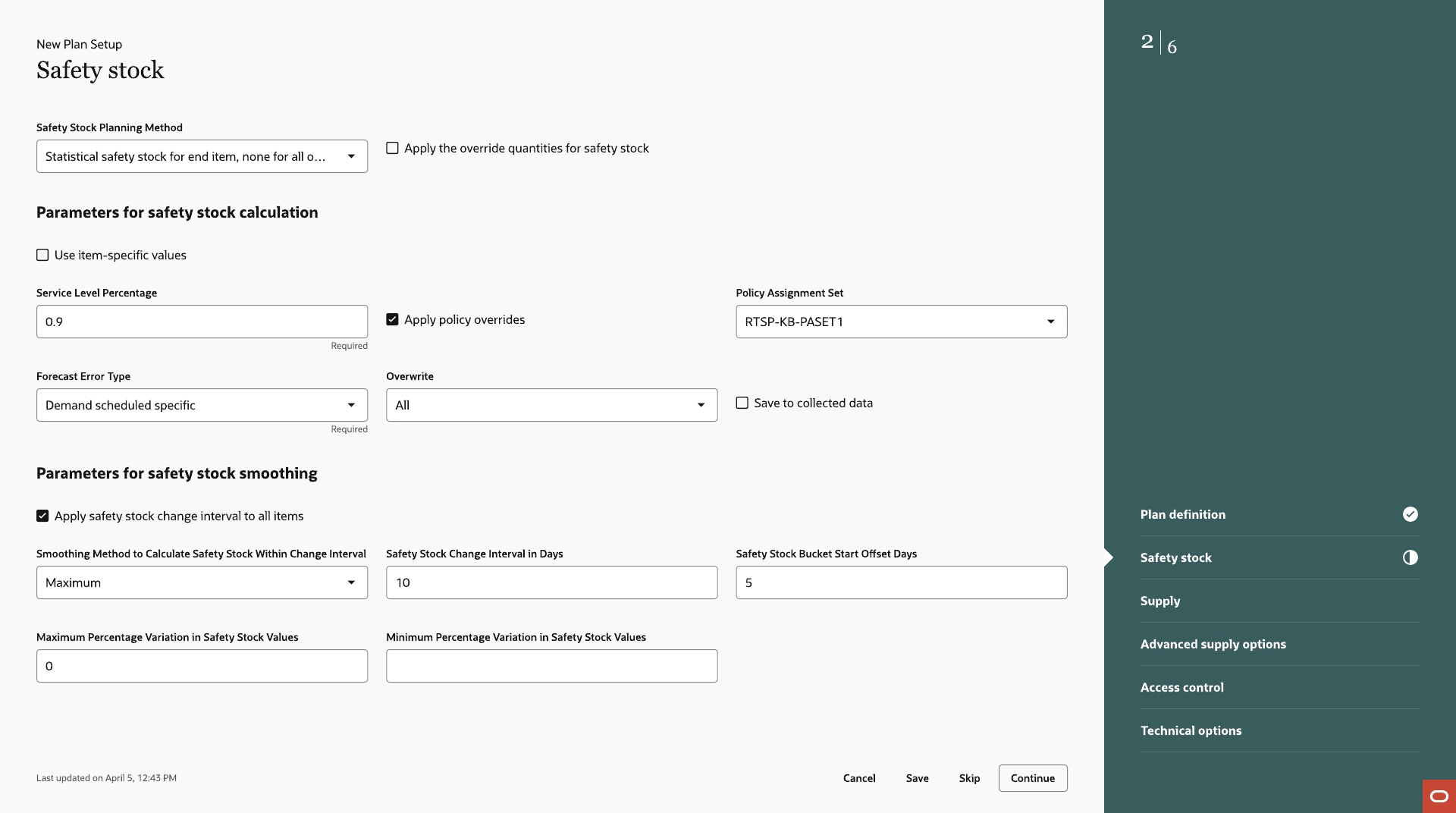
Safety Stock step with calculation and smoothing parameters
06Safety Stock has a calculation method and smoothing settings, both pre-set.
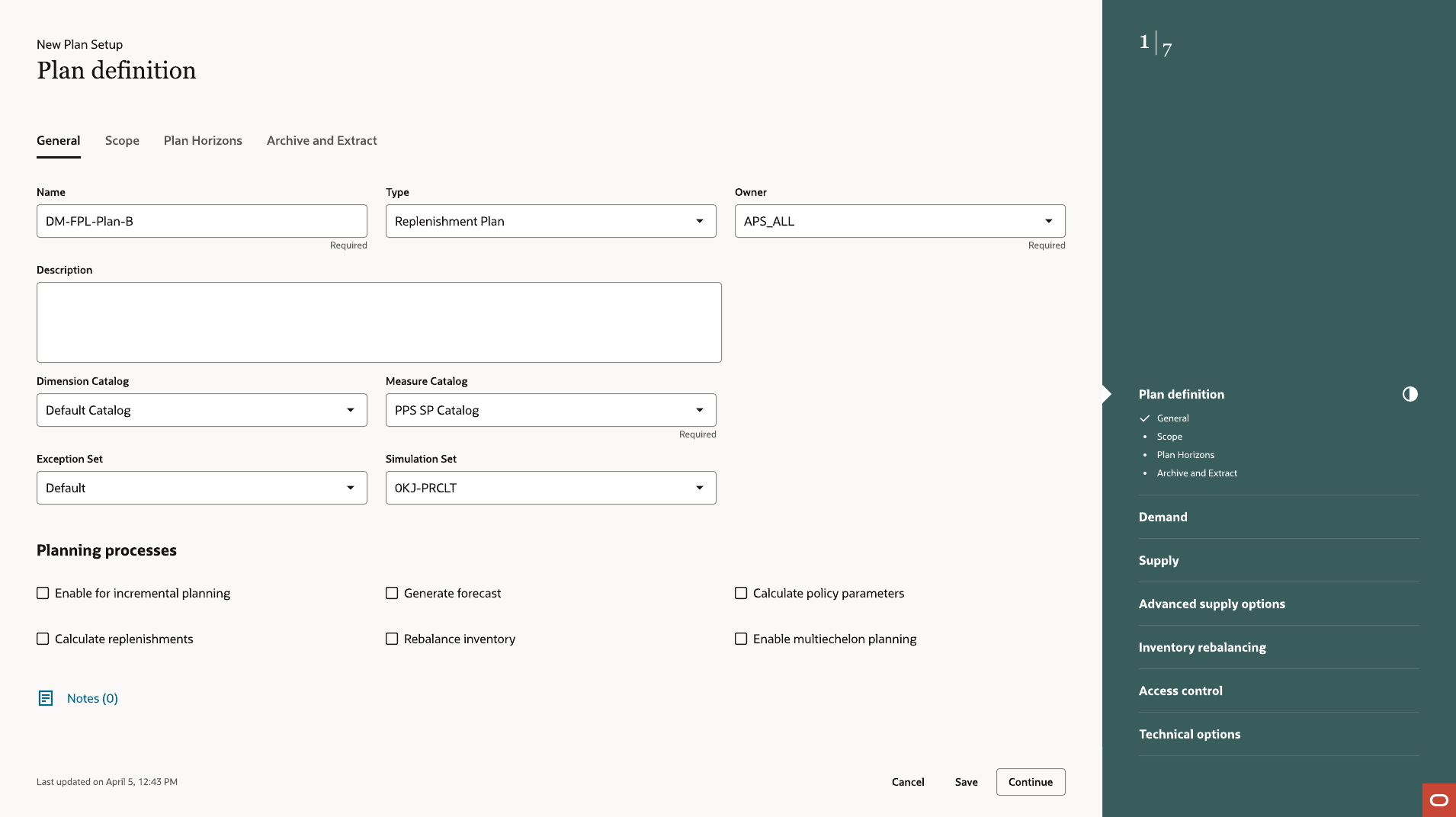
Plan Definition for a Replenishment Plan, with Inventory Rebalancing in the step rail
07A Replenishment Plan uses the same process and adds an Inventory Rebalancing step.
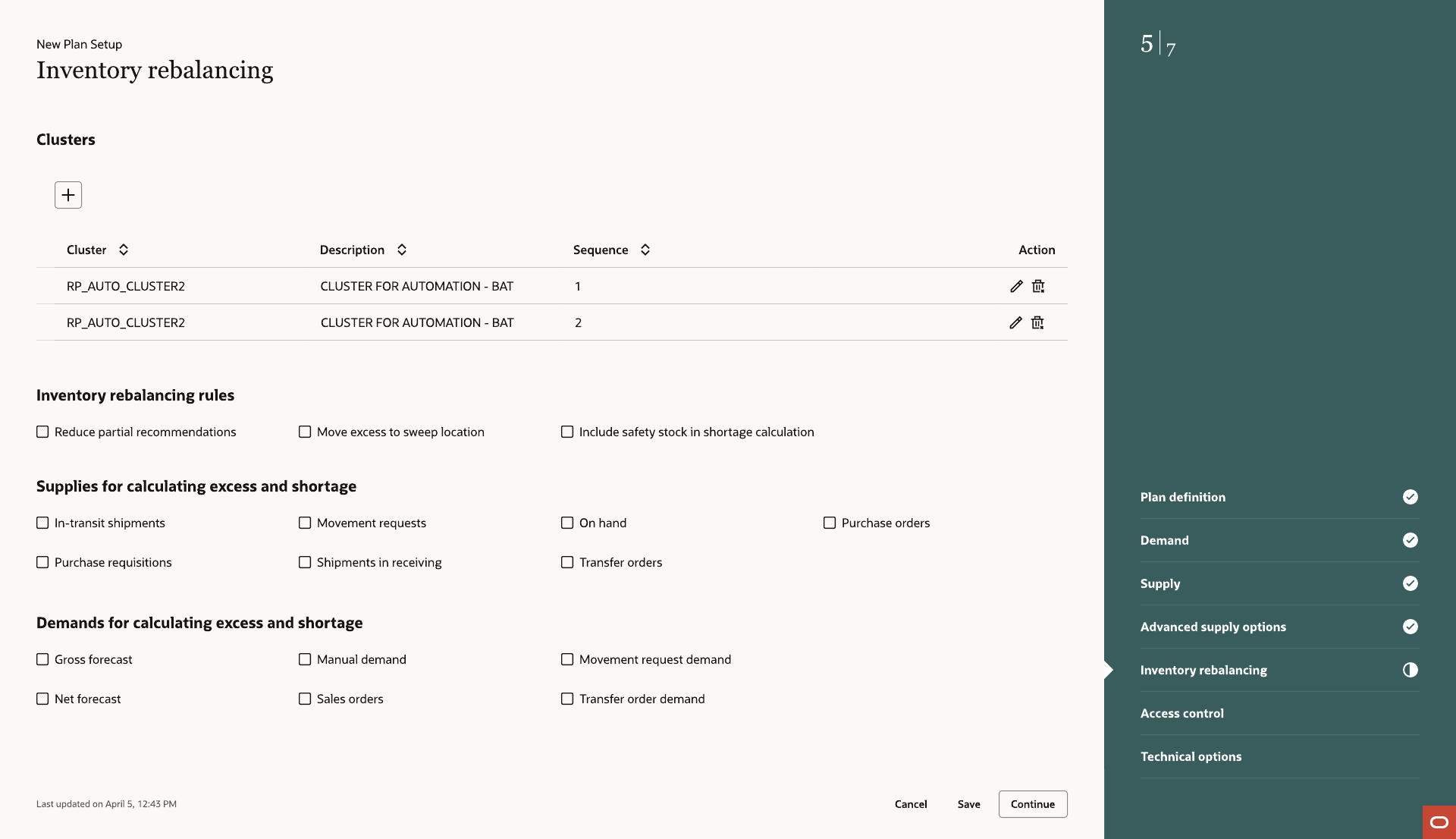
Inventory Rebalancing step with clusters, rebalancing rules and excess and shortage sources
08Inventory Rebalancing sets clusters, rules and the sources used to calculate excess and shortage.
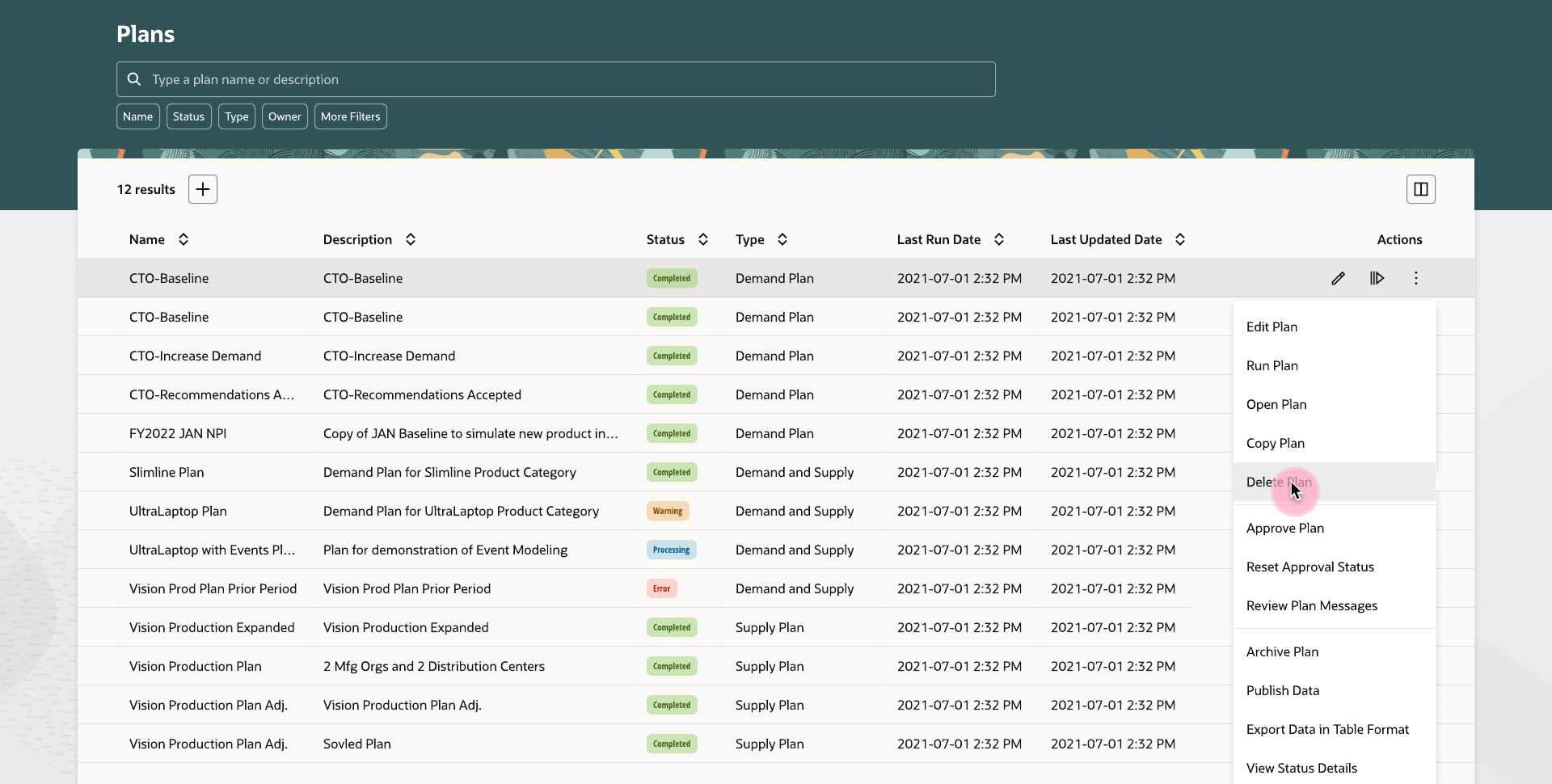
Plan actions menu open on the Plans list
09Edit, run, copy, delete, approve, archive, publish and export sit in one menu on each row, limited by plan type and status.
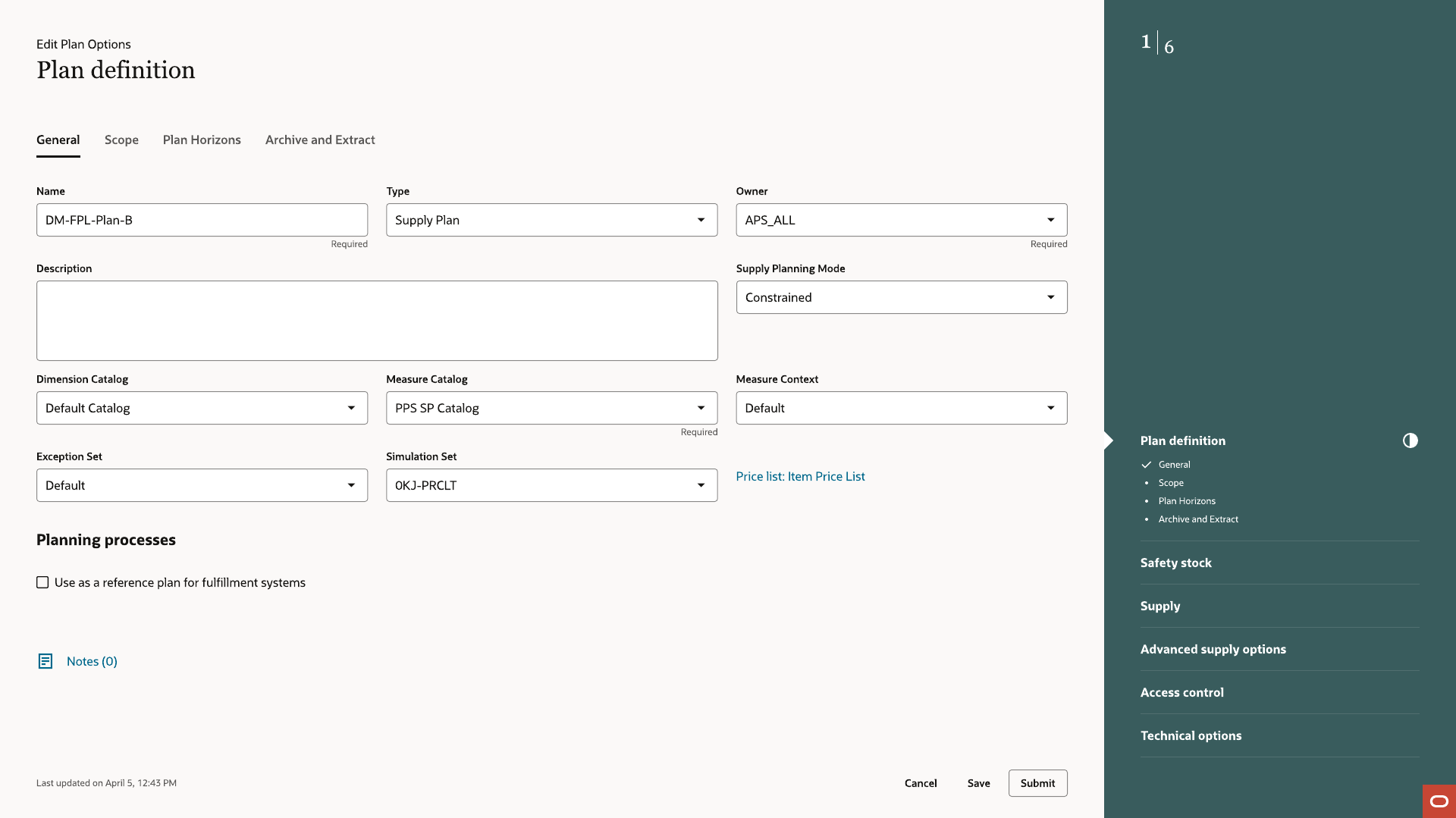
Edit Plan Options screen reopening the guided process with saved values
10Edit Plan Options reopens the same process with the plan’s saved values in place of defaults.

Takeaways

Generate only the steps that apply

Steps a plan type does not need are never created, so a planner does not have to work out which ones to skip.

Fill in defaults and keep full control

Required fields arrive filled. Advanced options stay available for planners who need them.

Reuse one process for every type

A new plan type adds steps to the same process, so it does not need a new screen.

Outcome

Four plan types now use one guided process, with four to seven steps depending on type. The same process reopens for editing, so changing a plan does not mean starting over.